
How to change name on zoom
Introduction
Changing your name on Zoom is something many users need at different times, especially when switching between personal and professional meetings. Whether you joined with the wrong name, want a more professional display, or simply prefer a different identity for online sessions, Zoom makes it fairly easy to update it. The platform allows you to adjust your name before joining a meeting, during a live session, or permanently through your account settings. Understanding these options helps you stay in control of how others see you on screen. In this guide, you’ll learn every method in a simple, practical way.
Understanding Your Zoom Name and Display Name
Your Zoom name is the identity shown to others during meetings, but it can vary depending on how you log in. If you’re signed in, Zoom usually displays your account name. If you join as a guest, you can set a temporary display name before entering a meeting. This name appears in the participant list and video window. Many users confuse account names with display names, but they serve different purposes. Knowing the difference helps you avoid confusion when switching devices or attending different meetings.
Why You Might Need to Change Your Zoom Name
People change their Zoom names for several practical reasons. You might want a more professional name for work meetings or correct a spelling mistake in your profile. Some users prefer using shortened names or nicknames for casual sessions. In educational settings, students often update names for easier identification by instructors. Privacy is another common reason, especially when joining public meetings or webinars. Whatever the reason, Zoom provides flexible options to update your name quickly without complicated steps.
How to Change Name on Zoom Before Joining a Meeting
One of the easiest ways to change your Zoom name is before entering a meeting. When you join a session, Zoom gives you an option to edit your display name on the joining screen. This is useful if you don’t want to change your account settings permanently. Simply type the new name in the field provided before clicking “Join.” This method works well for one-time changes and ensures you appear correctly in the meeting without affecting your saved profile.
Steps to Change Zoom Name on Desktop
On a desktop computer, open the Zoom application and click “Join a Meeting.” Before entering, you will see a name field where you can type your preferred display name. Enter the new name and proceed to join the meeting. If you’re already signed in, you may also update your profile name through settings for a more permanent change. This option is quick and convenient, especially for users who frequently attend meetings from the same device.
Steps to Change Zoom Name on Mobile App
On the Zoom mobile app, open the app and tap “Join a Meeting.” Before entering, you’ll see a name box where you can edit your display name. Simply type the new name and continue. If you are signed in, you can also change it through the profile section. Tap your profile icon, go to “Display Name,” make changes, and save. The mobile method is especially useful for users who join meetings on the go.
How to Change Name on Zoom During a Meeting
Zoom also allows participants to change their name while a meeting is already in progress. This feature is helpful if you joined with the wrong name or need to update it for clarity. However, keep in mind that some hosts may disable the renaming option for participants. If allowed, you can easily update your name without leaving the meeting. The change appears instantly in the participant list and for all attendees.
Changing Zoom Name on Windows or Mac
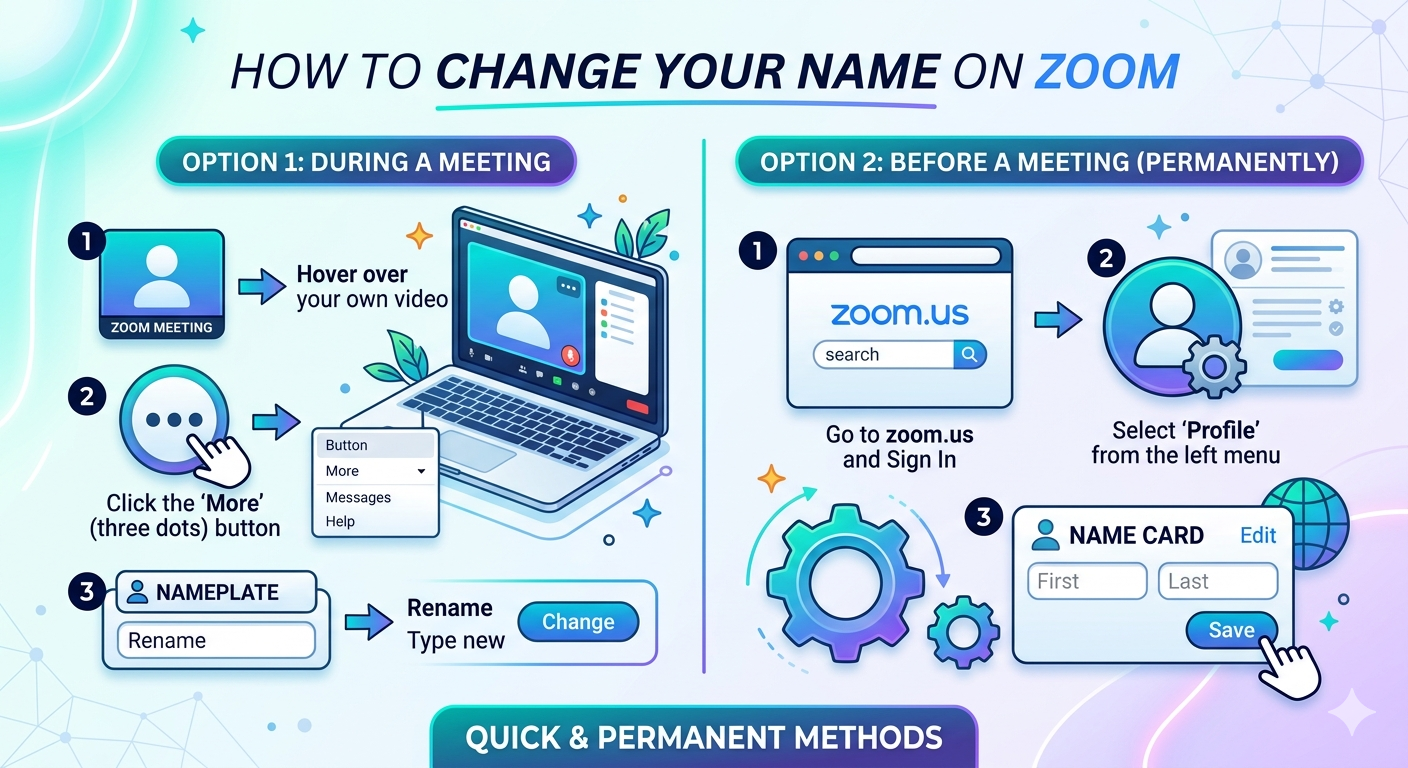
On Windows or Mac, click the “Participants” button located at the bottom of the meeting screen. A side panel will open showing all participants. Hover over your name, click “More,” and select “Rename.” Enter your new display name and confirm it. The update will reflect immediately in the meeting. This is one of the most commonly used methods for quick corrections during live sessions.
Changing Zoom Name on Android or iPhone
On mobile devices, tap “Participants” during the meeting. Find your name in the list and tap it. Select the “Rename” option and enter your new display name. Once confirmed, your updated name will appear instantly to everyone in the meeting. This feature is especially useful when switching between formal and informal meeting contexts using the same device.
How to Change Your Zoom Account Name Permanently
If you want a long-term change, updating your Zoom account name is the best option. This ensures your new name appears in all future meetings when you are logged in. You can do this by signing into your Zoom account through a browser. From there, go to your profile settings and edit your personal information. Once saved, the updated name becomes your default display name across all devices and sessions.
Updating Name Through Zoom Website
To permanently change your name, visit the Zoom website and sign in to your account. Go to the “Profile” section where your personal details are listed. Click the edit option next to your name, enter the new information, and save changes. This update will sync across all devices where you use Zoom. It’s the most reliable method for users who want consistent identity across meetings.
How to Change Zoom Name Without an Account
If you are joining as a guest without logging in, Zoom allows you to set your name before entering a meeting. Simply type your preferred display name in the joining screen. However, this change is temporary and only applies to that specific meeting. Once you leave, it won’t be saved for future sessions. This is useful for quick access without creating a Zoom account.
How to Change Name When Host Has Disabled Renaming
Sometimes, the meeting host may restrict participants from changing their names during a session. In such cases, the “Rename” option will not appear. This is usually done to maintain order in large meetings or webinars. If you need a name change, you may have to contact the host directly and request permission. Alternatively, you can rejoin the meeting with the correct name if allowed.
Common Problems When Changing Name on Zoom
Users occasionally face issues while updating their Zoom name. These problems are usually minor and easy to fix with a few adjustments. The most common issues include the name not updating, missing rename options, or the old name still appearing in meetings. These glitches often relate to account sync or host settings rather than a technical fault in Zoom itself.
Name Not Updating
If your new name isn’t showing, try logging out and logging back into Zoom. Sometimes the app needs a refresh to sync changes. Checking your account settings again can also help confirm whether the update was saved properly. Restarting the app often resolves this issue quickly.
Rename Option Missing
If you cannot find the rename option during a meeting, it is likely disabled by the host. In this case, participants are not allowed to modify their display names. You may need to request permission or wait until the next session to join with the correct name.
Old Name Showing in Meetings
When your old name still appears, clearing app cache or updating Zoom can help. Ensure you are logged into the correct account as well. In many cases, simply rejoining the meeting fixes the issue.
Tips for Choosing the Right Zoom Display Name
Choosing the right Zoom name helps you appear more professional and recognizable. For work meetings, use your full name along with your role if needed. In casual meetings, a simple first name is usually enough. Avoid using unclear nicknames in professional settings. Keeping your name consistent across meetings helps others identify you easily and improves communication, especially in group discussions or virtual classrooms.
FAQs About Changing Name on Zoom
Can I change my Zoom name without changing my account name?
Yes, you can change your display name before or during a meeting without updating your account name. This change is temporary and only applies to that session.
How do I change my name permanently on Zoom?
You need to update your profile through the Zoom website. Once saved, the new name will appear in all future meetings.
Can I rename myself during a Zoom meeting?
Yes, if the host allows it. You can use the Participants panel to rename yourself instantly.
Why can’t I change my Zoom name?
This usually happens when the host has disabled renaming or when you are not signed into an account with permission.
Does changing my Zoom name affect past meetings?
No, it only applies to future or ongoing meetings. Past meeting records remain unchanged.
Conclusion
Changing your name on Zoom is simple once you understand the different options available. Whether you need a quick update before joining, a change during a meeting, or a permanent adjustment through your account, Zoom offers flexible solutions for every situation. Knowing how and when to update your display name helps you maintain a clear and professional presence in virtual meetings.