How to change your name on facebook
Introduction
Changing your Facebook name is a simple process, but many users struggle to find the right settings or understand Facebook’s name requirements. Whether you want to update your name after marriage, correct a spelling mistake, use a personal brand name, or simply change an outdated profile name, Facebook provides an easy way to make the update.
However, Facebook follows certain guidelines to keep profiles authentic and secure. Your new name must follow their rules, and frequent changes may be restricted. In this guide, you will learn how to change your name on Facebook using both desktop and mobile devices, understand common issues, and discover useful tips for choosing the right name.
Understanding Facebook Name Change Rules
Before changing your Facebook name, it is important to understand the platform’s naming guidelines. Facebook encourages users to use the name they are commonly known by in everyday life. This helps maintain real connections and reduces fake accounts or misleading profiles.
Your name should look like a real personal name and should not include unnecessary symbols, numbers, unusual capitalization, or words that represent titles. Facebook may reject names that appear fake, promotional, or confusing.
Facebook also limits how often you can update your name. After making a change, you may need to wait before changing it again, so it is better to choose your new name carefully.
Facebook Name Requirements
Facebook has specific rules that help keep names consistent across the platform. Before submitting a change, make sure your new name follows these requirements:
- Use a name you are known by in real life
- Avoid adding symbols, emojis, or random characters
- Do not include professional titles like “Doctor” or “CEO”
- Avoid offensive or misleading words
- Use proper capitalization and normal spelling
Following these rules increases the chance that Facebook will approve your request without delays.
How to Change Your Name on Facebook (Desktop Method)
If you use Facebook on a computer, changing your name can be done through your account settings. The process has moved into Facebook’s Accounts Center, where users can manage personal details across connected Meta services.
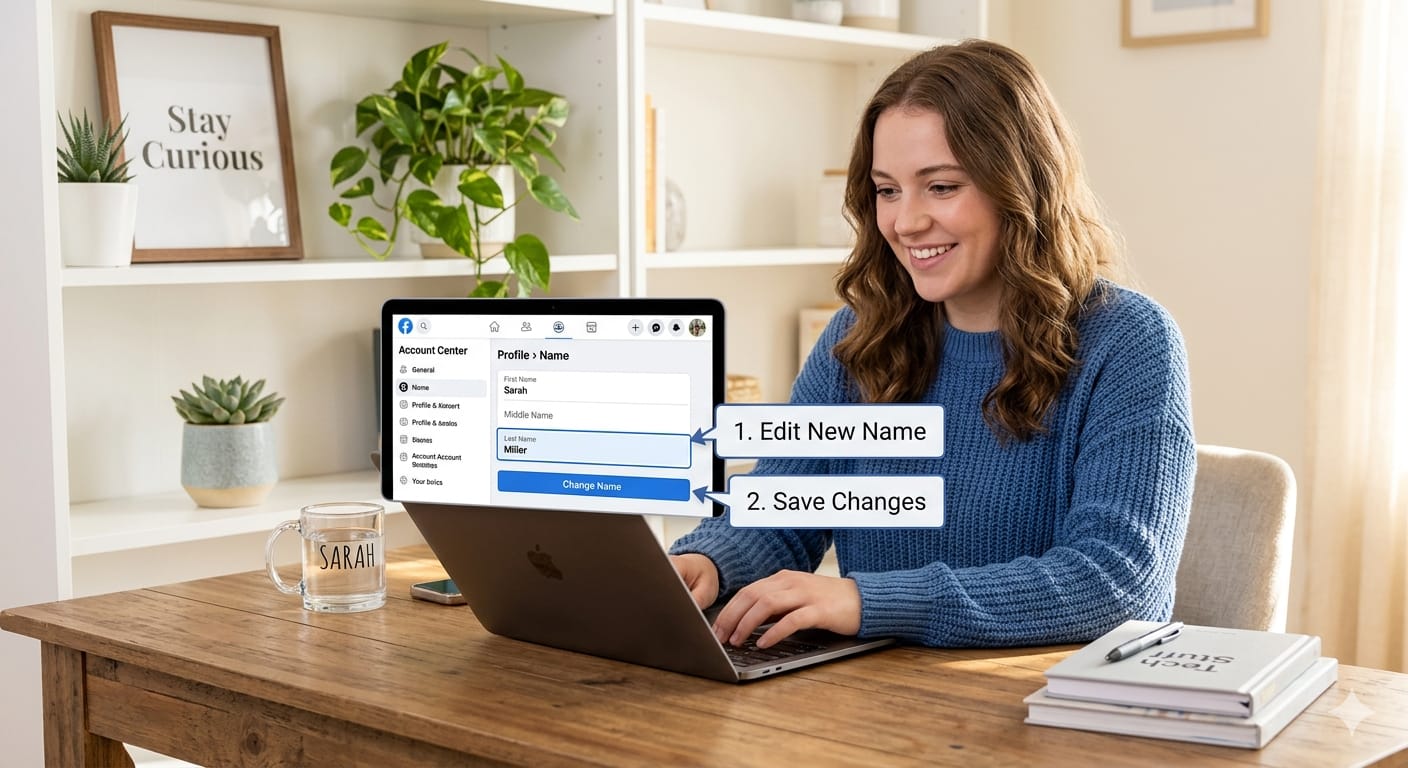
Start by logging into Facebook through your browser. Open the settings menu, access your personal information section, and select the option to edit your name. After entering your new name, Facebook will ask you to review the change before saving it.
You may also need to enter your password for security confirmation. Once approved, your updated name will appear on your Facebook profile.
Steps to Change Facebook Name on Computer
Follow these steps to update your name using a desktop browser:
- Open Facebook and sign in to your account.
- Click your profile picture and open Settings & Privacy.
- Select Settings and go to Accounts Center.
- Choose Personal Details and select Name.
- Enter your new first, middle, or last name.
- Review the preview and confirm the change.
- Enter your password and save the update.
The change usually appears quickly, but some requests may require additional review.
How to Change Your Name on Facebook Mobile App
The Facebook mobile app provides a similar process, but the location of settings can be confusing for some users. Whether you use Android or iPhone, you can update your profile name through the Accounts Center section.
Open the Facebook app, access the menu, and navigate to your account settings. From there, you can edit your personal details and update your name. The app allows you to preview how your new name will appear before confirming the change.
Keeping your Facebook app updated can also help because older versions may display settings differently.
Steps to Change Name Using Facebook App
To change your Facebook name from your phone:
- Open the Facebook app.
- Tap the menu icon.
- Select Settings & Privacy.
- Open Accounts Center.
- Tap Personal Details.
- Choose Name and enter your updated information.
- Review and save your changes.
After confirmation, your new name will replace the previous one on your profile.
How Long Does Facebook Take to Approve a Name Change?
In many cases, Facebook updates your name immediately after you confirm the change. However, some requests may take longer if Facebook needs to review whether the new name follows its policies.
Approval time can depend on several factors, including unusual name formats, previous name changes, or security checks. If Facebook requests additional information, you may need to provide verification before the update is completed.
If your name change does not appear right away, avoid submitting multiple requests because repeated attempts may create additional delays.
Why Can’t I Change My Name on Facebook?
There are several reasons why Facebook may prevent you from changing your name. The most common issue is that the new name does not follow Facebook’s naming standards or you recently changed your name and reached the waiting period.
Other problems can happen because of account restrictions, incorrect password entry, or security reviews. Checking your account settings and reviewing Facebook’s requirements can help identify the issue.
If your request is rejected, try using a more natural version of your name that matches Facebook’s guidelines.
Common Facebook Name Change Problems
Some users experience issues while updating their profile name, such as:
- The name option is unavailable
- Facebook rejects the requested name
- The account requires identity confirmation
- The password confirmation fails
- The name was changed recently
Understanding these problems makes it easier to fix the issue instead of repeatedly submitting unsuccessful requests.
How to Change Your Facebook Name Without Waiting 60 Days
Facebook usually prevents users from changing their name again for a certain period after an update. This restriction helps prevent misuse and keeps profile information stable.
If you made a mistake during the previous change, your options may be limited. In some cases, Facebook may allow changes if there is a valid reason, but approval is not guaranteed.
The best approach is to carefully check your spelling and name format before confirming any future changes.
How to Add Another Name on Facebook
Facebook allows users to add additional names, such as nicknames, maiden names, or alternative names. This feature is useful if people know you by another name but you still want to keep your main profile name.
Additional names can appear alongside your primary name depending on your settings. They help friends and contacts find you more easily without replacing your official profile name.
This option is especially helpful for users who want to maintain both a personal identity and a professional presence.
Adding a Nickname or Other Name
To add another name:
- Open your Facebook profile settings.
- Go to personal details.
- Select the additional name option.
- Choose the type of name you want to add.
- Enter the information and save it.
You can update or remove additional names whenever needed.
How to Change Your Facebook Name
Your Facebook name plays an important role in how people recognize and interact with your profile. Whether you are updating it for personal reasons or creating a stronger online identity, choosing the right name can improve your overall Facebook experience.
Always make sure your new name represents you accurately and follows Facebook’s rules. Taking a moment to review the spelling, format, and appearance before saving can prevent future problems.
A carefully selected name helps maintain consistency across your online presence while keeping your profile easy for others to find.
Tips for Choosing the Right Facebook Name
Choosing a Facebook name may seem simple, but it is worth considering how it represents you online. A good name should be easy to recognize, professional when needed, and consistent with your identity.
Helpful tips include:
- Choose a name you plan to use long-term
- Avoid unnecessary changes
- Keep spelling accurate
- Use a name friends and contacts recognize
A stable Facebook name makes it easier for people to connect with you and avoids confusion.
Frequently Asked Questions (FAQs)
Can I change my Facebook name anytime?
You can change your Facebook name, but Facebook may limit how often you can update it. If you recently changed your name, you may need to wait before making another change.
How many times can I change my Facebook name?
Facebook does not allow unlimited name changes. Frequent updates may be restricted to prevent misuse and keep profiles authentic.
Why is Facebook not accepting my new name?
Your name may be rejected if it includes symbols, unusual formats, fake information, or does not follow Facebook’s naming rules.
Can I use a nickname as my Facebook name?
Yes, you can add a nickname as an additional name. Using it as your main name depends on whether it follows Facebook’s guidelines.
How do I change my Facebook name on iPhone?
You can change it through the Facebook app by opening settings, accessing Accounts Center, selecting personal details, and editing your name.
How do I change my Facebook name on Android?
The process is similar on Android devices. Open the app settings, go to Accounts Center, and update your personal details.
Conclusion
Changing your Facebook name is a straightforward process when you know where to find the right settings. Whether you are correcting an error, updating your identity, or adding a preferred name, Facebook provides tools to manage your profile information easily.
Remember to follow Facebook’s name requirements and choose your new name carefully because frequent changes may be restricted. By using the steps in this guide, you can quickly update your Facebook name and keep your profile accurate and recognizable.
If you’re updating your Facebook name because of a recent life change, you may also want to learn how to change your name after marriage for a smoother transition across your online profiles. For more helpful name ideas, tips, and resources, explore NameSideaz and discover useful guides for choosing the right name. If you’re looking for creative names for your group, squad, or community, try our Team Name Generator to find unique and memorable options. These resources can make it easier to manage your online identity and choose names that fit your personality or purpose.